
§ Connect via GUI Client
To connect with a GUI client, you need to modify the current host configuration information of the user.
greatsql> SELECT Host,User FROM mysql.user;
+-----------+------------------+
| Host      | User             |
+-----------+------------------+
| localhost | root             |
| localhost | mysql.infoschema |
| localhost | mysql.session    |
| localhost | mysql.sys        |
+-----------+------------------+
4 rows in set (0.00 sec)
2
3
4
5
6
7
8
9
10
The Host column specifies the IP from which the user is allowed to log in.
- If
user=root, Host=192.168.1.1, it means the root user accesses the database from a client at192.168.1.1 - If
user=root, Host=localhost, it means the user can only access the database from a local client - If
Host=192.168.1.%, where%is a wildcard, it means any client in the192.168.1.%network segment can connect - If
Host=%, it means all IPs have permission to connect
Warning
Do not modify the Host of the root user! Unpredictable consequences may occur.
It is recommended to create a new user authorized for remote connection instead.
Create a new user greatsql with the password GreatSQL@2024. This user has the same privileges as root and supports remote connection:
CREATE USER 'greatsql'@'%' IDENTIFIED BY 'GreatSQL@2024';
Here % means the user is allowed to connect from any host. Use the GRANT statement to give newuser the same privileges as root, and then flush the privileges:
GRANT ALL PRIVILEGES ON *.* TO 'greatsql'@'%' WITH GRANT OPTION;
FLUSH PRIVILEGES;
2
Note
Granting a user the same privileges as root may introduce security risks. Make sure you understand these risks and do so only when necessary.
In the following examples, the greatsql user is used to connect.
§ Connecting with Navicat
The process of downloading and installing Navicat is omitted here. Navicat is a paid tool; you can use the trial version if needed.
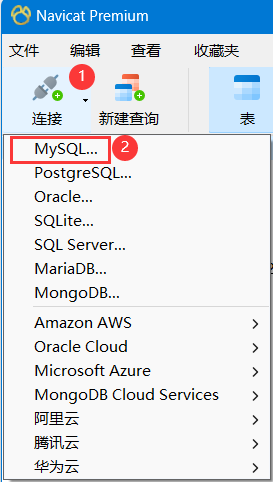
Open the Navicat tool, click 连接 (Connect) in the upper left corner, and select MySQL.
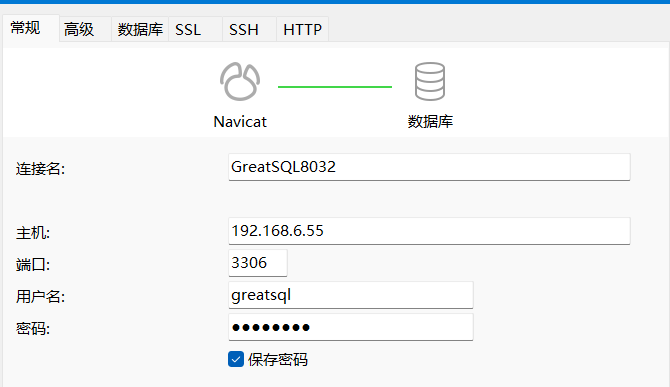
Fill in the connection name (any name of your choice), set the host to the IP of the machine where GreatSQL runs, keep the default port 3306, use the greatsql user created above, and set the password to GreatSQL@2024.
After filling in the information, click 测试连接 (Test Connection) in the lower left corner. If 连接成功 (Connection Successful) is displayed, click 确认 (OK) in the lower right corner.

At this point, connecting to the GreatSQL server with Navicat is complete.
§ Connecting with MySQL workbench
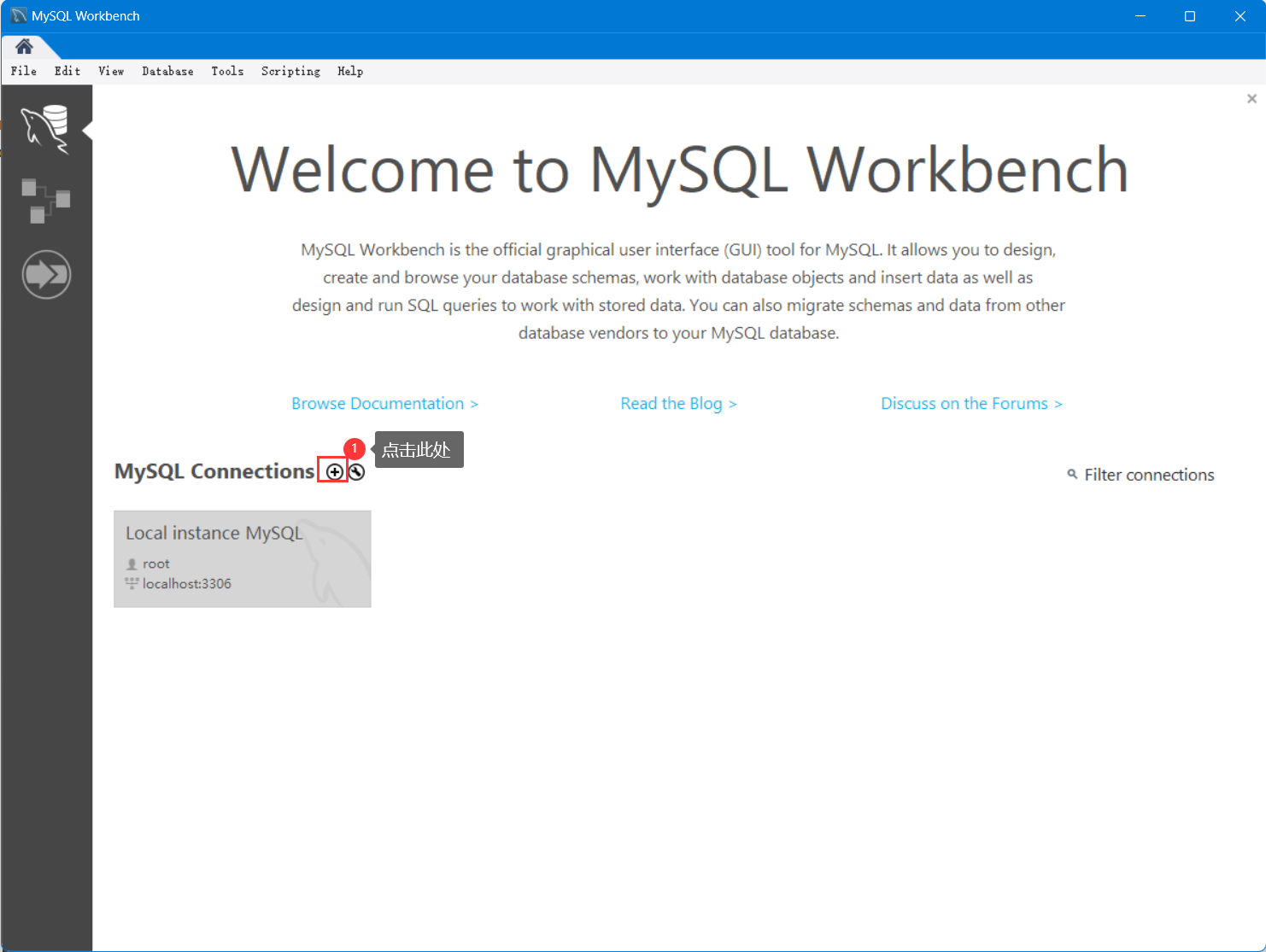
Open the MySQL workbench tool and click the + sign.
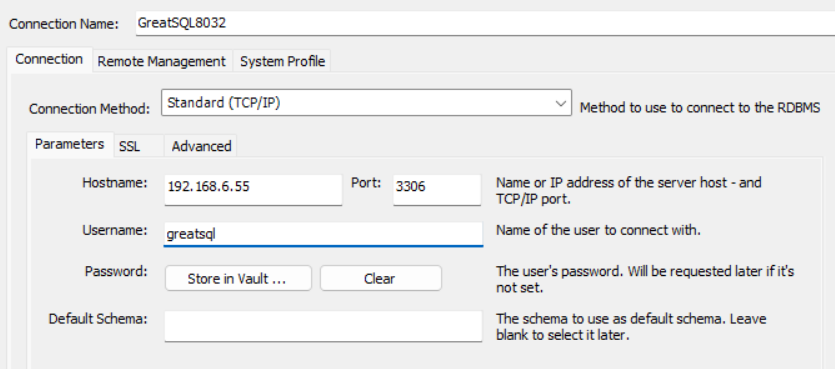
Fill in the connection name (any name of your choice), set the host to the IP of the machine where GreatSQL runs, keep the default port 3306, use the greatsql user created above, and when filling in the password, click Store in Vault and enter the password GreatSQL@2024 in the pop-up window.
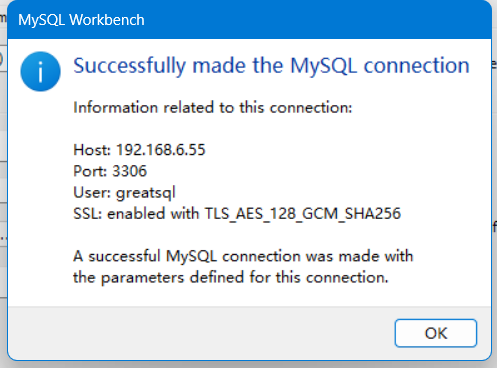
After filling in the information, click Test Connection to test the connection. The message Successfully made the MySQL connection indicates a successful connection.
The connection information can also be seen on the home page; double-click it to enter the GreatSQL client.
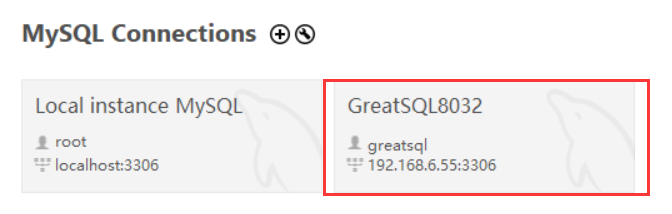
At this point, connecting to the GreatSQL server with MySQL workbench is complete.
§ Connecting with ATOMDB
ATOMDB™ is a database management client for developers. It lets developers run queries conveniently, create and manage databases, and supports managing the mainstream database management systems on the market.
Download and install ATOMDB.
Open the ATOMDB tool, click File in the upper left corner, and select New project. A dialog box appears asking for the project name; fill it in as you need.
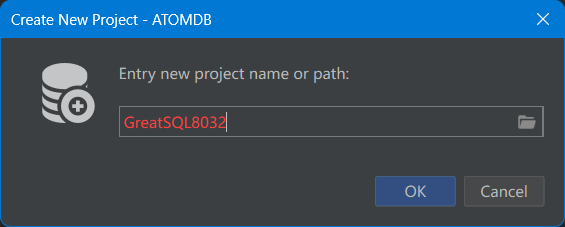
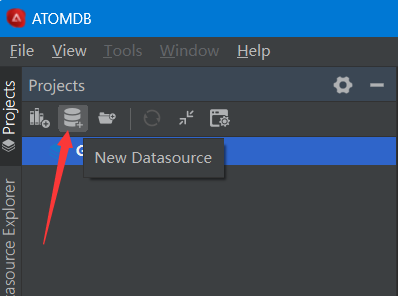
After the project is created, click to add a data source.
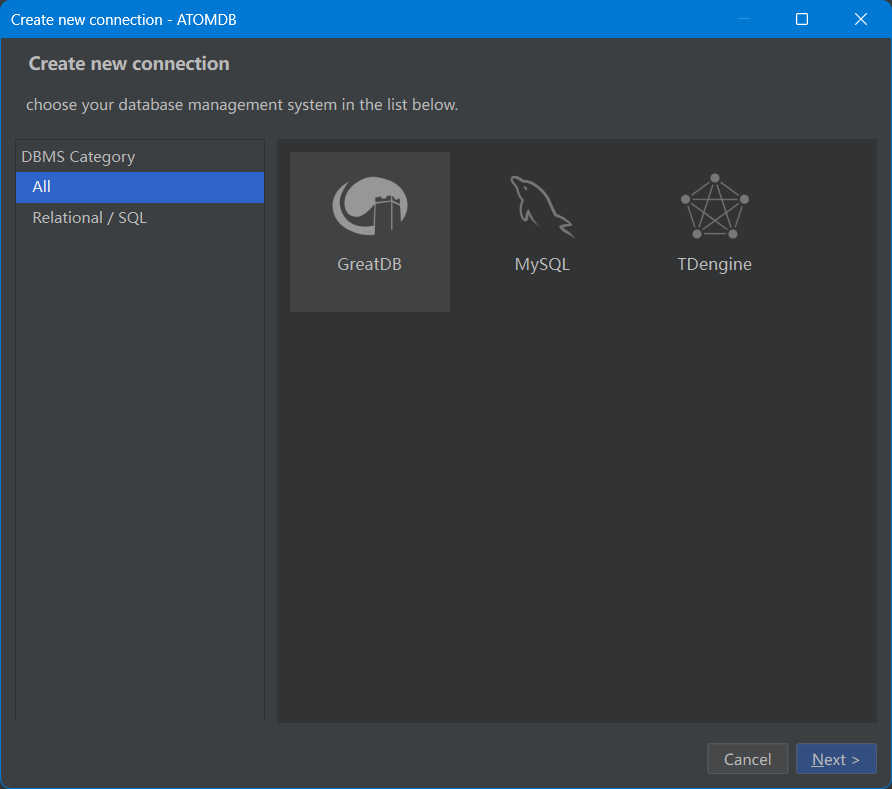
Select GreatDB and click Next.
Fill in the connection name (any name of your choice), set the host to the IP of the machine where GreatSQL runs, keep the default port 3306, use the greatsql user created above, set the password to GreatSQL@2024, and click test.
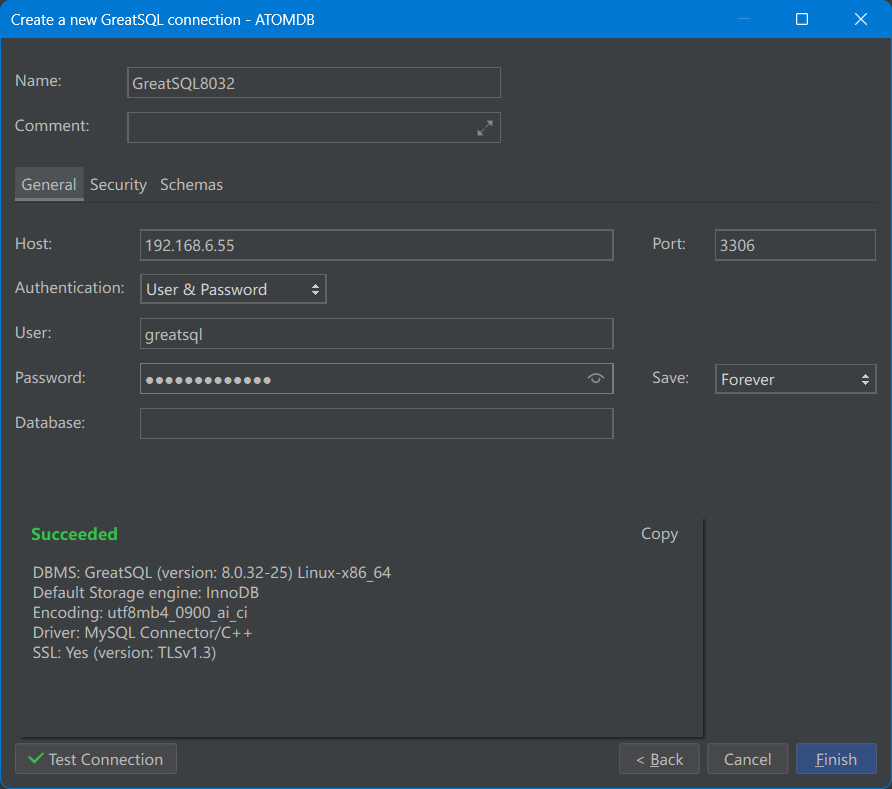
At this point, connecting to the GreatSQL server with ATOMDB is complete.
Scan the QR code to follow our WeChat Official Account